Appendix A — Installation of R
This appendix explains the installation of R on a Windows system. The installation of R proceeds in several steps:
- Installation of R software (Section A.1)
- Installation of Rtools (Section A.2)
- Configuring the connection with Windows (Section A.3)
- Installation of additional R packages (Section A.4)
Configuring the connection with Windows is optional but recommended. If a specific R installation needs to be ‘frozen’, this step should be skipped.
A.1 Installation of R Software
The installation of the R software package can be started with the program R-4.5.2-win.exe1. Then, follow the installation steps with the default settings.
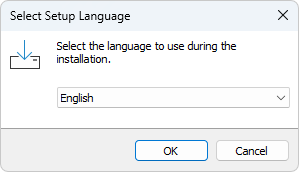
Step 1: Select language English.
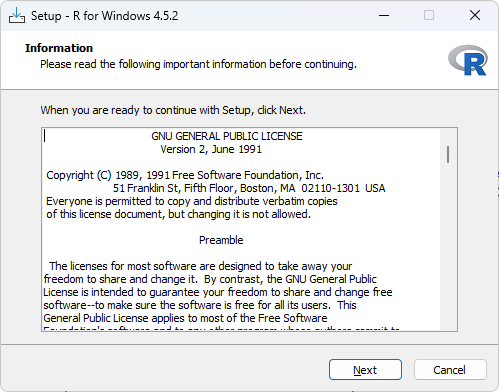
Step 2: Agree to the license Next.
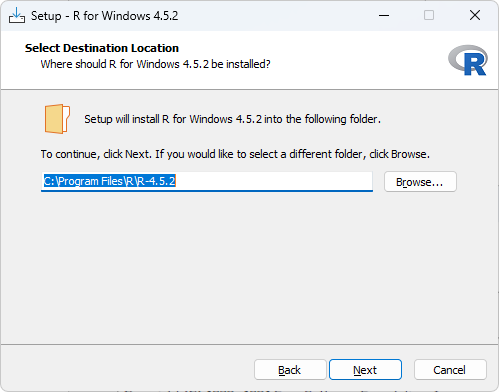
Step 3: Select location for the R installation Next.
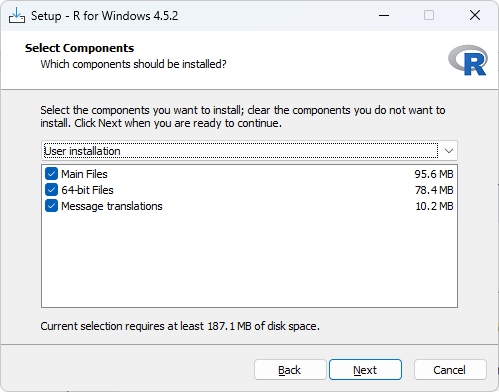
Step 4: Select installation components Next.
Step 5: Accept the default values Next.
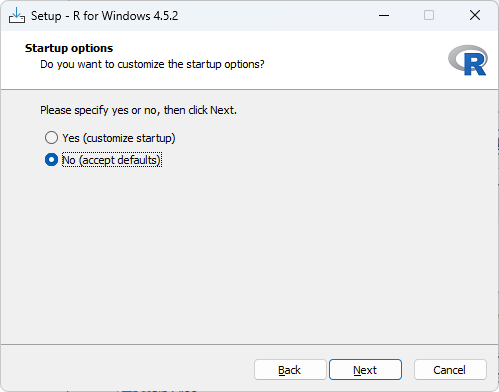
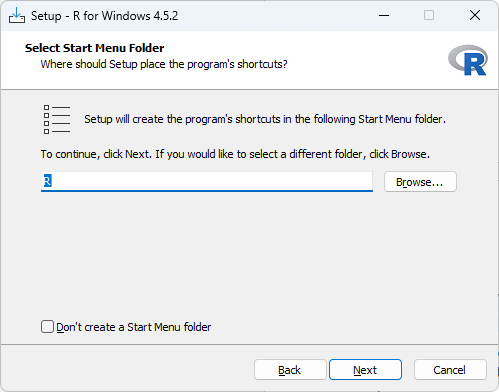
Step 6: Select folder for Start Menu Next.
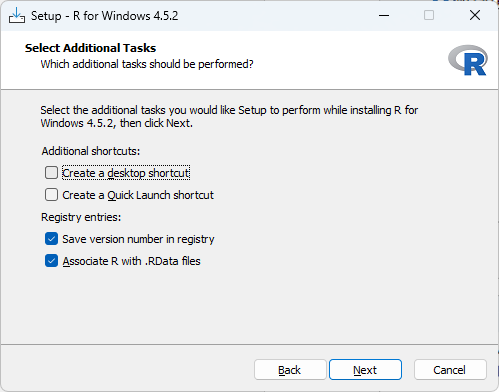
Step 7: Select additional options Next. Creating a desktop shortcut is not necessary.
Installation progress…
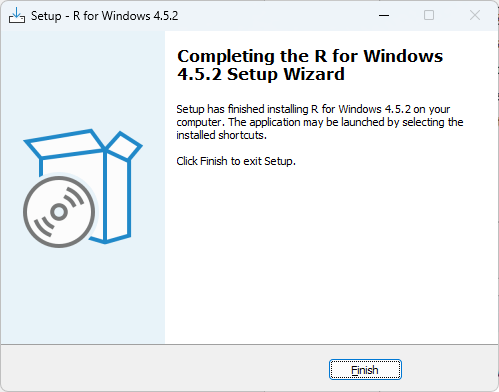
Step 8: End of installation Finish.
A.2 Installation of Rtools
The installation of the Rtools software package can be started with the program rtools45-6768-6492.exe2. Then, follow the installation steps with the default settings.
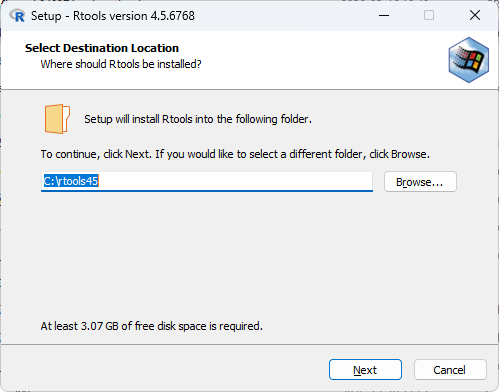
Step 1: Select location for the Rtools installation Next. The location C:\rtools45 is recommended.
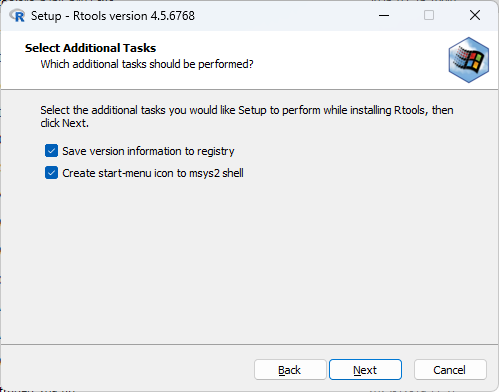
Step 2: Select additional options Next.
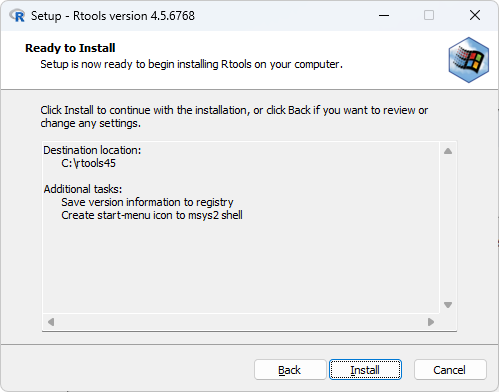
Step 3: Start the installation Install.
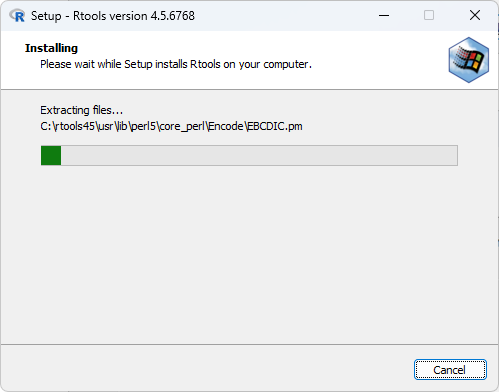
Installation progress…
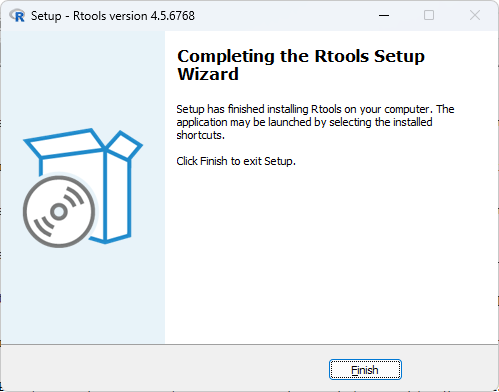
Step 4: End of installation Finish.
A.3 Configuring the Connection with Windows
Follow the steps below to check if Windows recognizes the R installation (including the installation folder for additional R packages).
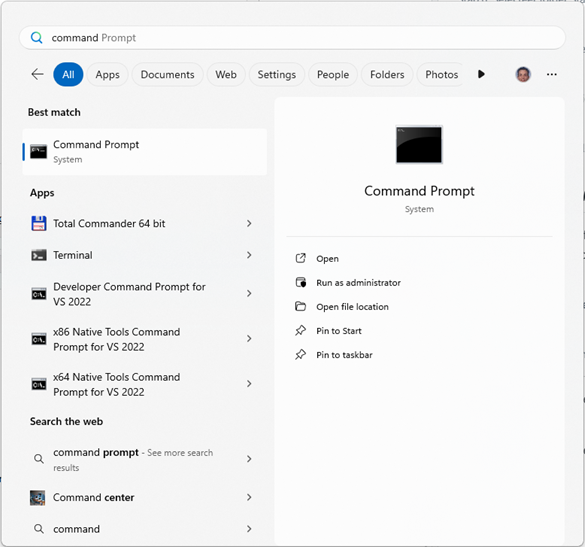
Step 1: Start a Command Prompt.
Step 2: Enter the command R.
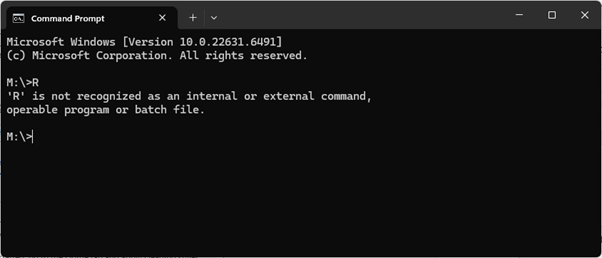
If the message “‘R’ is not recognized as an internal or external command, operable program or batch file.” appears, it means Windows does not yet recognize the R installation. This can be fixed by adding a Windows system variable (environment variable). The Command Prompt can be closed.
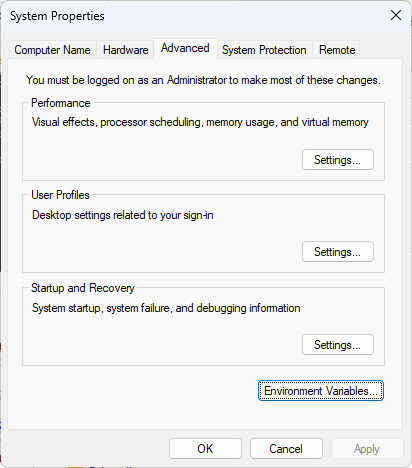
Step 3: Open System Properties and select Environment Variables.
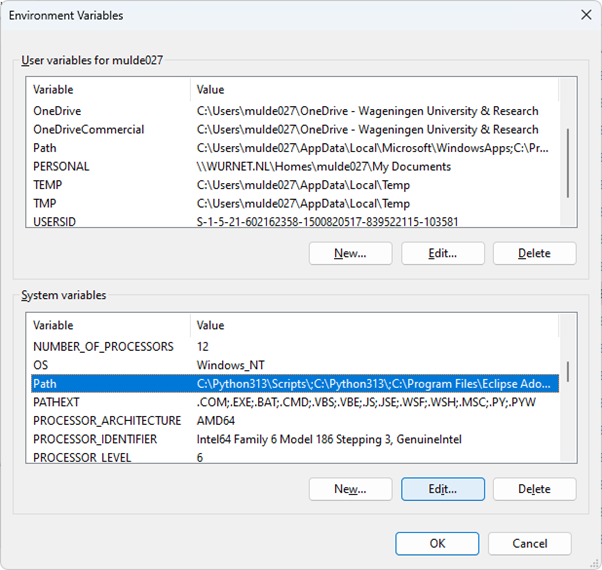
Step 4: Go to Path (System variables) and add a Windows system variable with Edit.
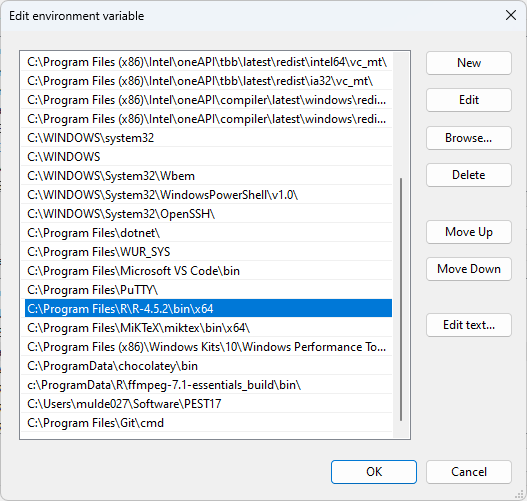
Step 5: Add the path to the R installation using the New option. By default, this is: “c:\Program Files\R\R-4.5.2\bin\x64”.
Step 6: Then go to New (System variables).
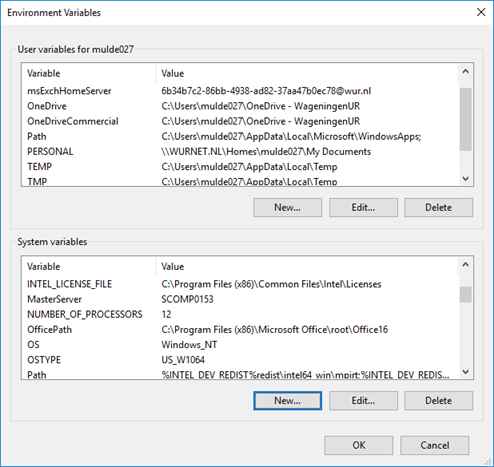
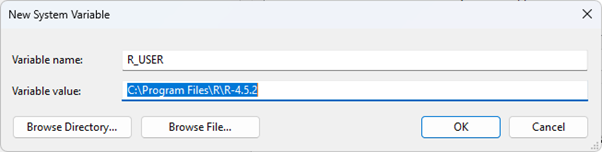
Step 7: Add the Windows system variable R_USER. Make a reference to the R software installation folder, which by default is: c:\Program Files\R\R-4.5.2.
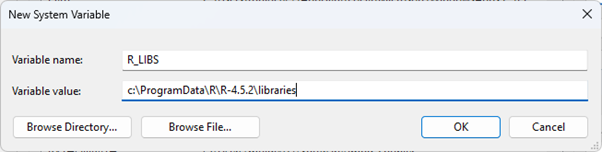
Step 8: Finally, add the Windows system variable R_LIBS. The folder C:\ProgramData\R\R-4.5.2\libraries is where additional R packages are installed. Ensure that you have write permissions for this folder, as it is necessary to add packages. If the folder does not yet exist, it must be created before referring to it.
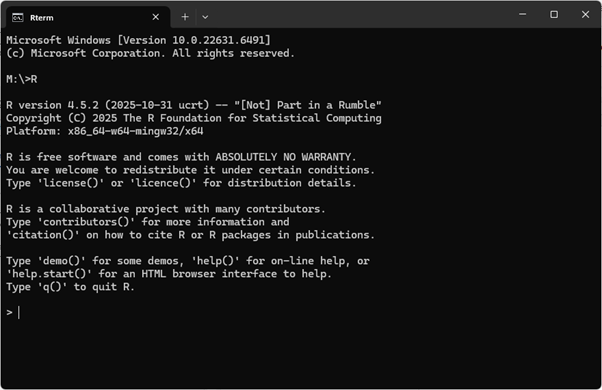
Step 9: Check again if Windows recognizes the R installation correctly.
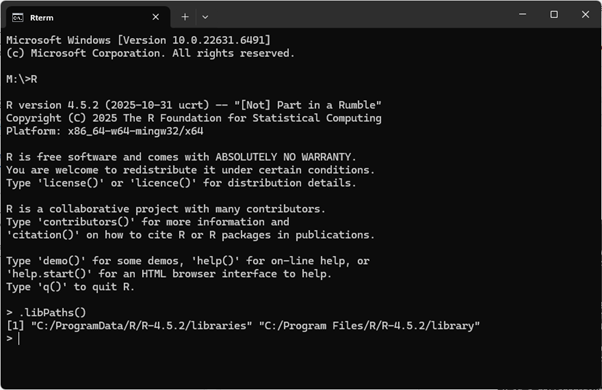
Step 10: Check the path to the installation folder for additional R packages with the command .libPaths(). The first folder reported (C:\ProgramData\R\R-4.5.2\libraries) is the folder for additional R packages.
The Command Prompt can be closed.
A.4 Installation of Additional R Packages
Once the installation of R and the configuration of Windows have been successfully completed, additional R packages can be installed. For this (one-time) action, an R script has been written (.\tools\R\libraries.R). The R script can be opened with any text editor, such as Notepad or Notepad++. The first part of the R script includes user-specific settings.
To install standard R packages, a reference to CRAN should be set. This is done by defining repos_CRAN with the value https://cloud.r-project.org/. With repos_LOCAL (default: NULL), an optional reference can be made to a local repository (file:../../tools/R/local) or to a repository on a website (https://waterwijzerlandbouw.wur.nl/repo). This applies when using additional R packages that are not available on CRAN by default.
The location where R packages are installed is set via dir_pkg. If the Windows system variable R_LIBS has been added (Section A.3), NULL can be used here. In other cases, a reference must be made to a folder where the R packages will be installed. The list of R packages to be installed is specified via pkg_load.
The first time an R script is launched (for example, with the command file plot_swap.cmd), all R packages are installed. First, open the command file set_Renv.cmd in a text editor to check if the reference to the R installation is set correctly. If the command file does not automatically start in the folder from which it is executed, you need to manually set the default working folder for each R session. Optionally, a reference to a default working folder can be included in set_Renv.cmd.
After this check, you can begin installing the additional R packages. This process may take several minutes. Once the installation is successfully completed, it is possible to ‘freeze’ the installation by setting the options ONLINE and UPDATE in the R script .\tools\R\libraries.R to ‘FALSE’. This will prevent the network from being accessed when starting an R application.